The KNFB Reader is a text recognition app that is shockingly fast. Take a picture of a newspaper article or practically any printed text and within a couple of seconds the app will be reading the text back to you. A "couple of seconds" is no exaggeration, the KNFB Reader app is that fast. For people who are visually impaired or have difficulty reading, the KNFB Reader is perfect for accessing printed text.
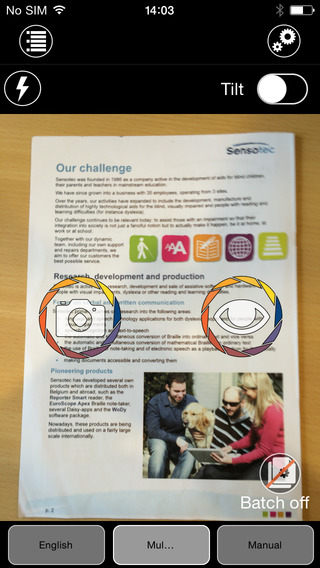
Once a document is properly framed, only one more step is necessary to start reading the document. Simply press the take picture button and within seconds the app will recognize the text within the document using optical character recognition (OCR) and begin reading it with text-to-speech. No need to crop or adjust the image, once the picture is taken the app does all the work. All recognition is done locally on the device so personal data is never transmitted over the internet.
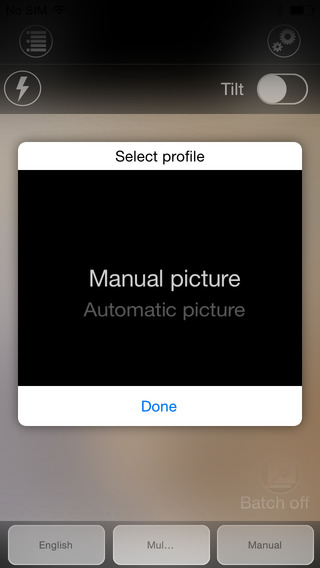
The KNFB Reader app has a number of features that help users capture images of text. For users who are blind and visually impaired the app offers a "field of view report" which offers spoken feedback to help frame the document in the view finder. This feature will let a users know how many corners of the document are within the field of view and if the document is tilted. In addition, the app offers automatic picture taking mode which will automatically snap a picture of a document when it is properly framed. The app also includes the ability to capture multi-page documents with batch mode. The field of view feature worked well with loose paper documents, but I did not have success using the automatic capture feature with books.
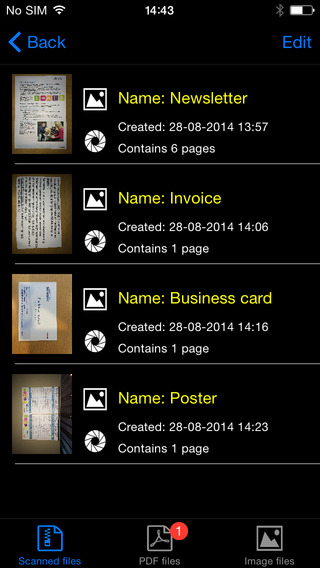
In addition to using the device's built in camera to capture images, users can also import image based PDF documents and JPG files to be recognized with the app. For example, using the "open in" feature of Google Drive will allow a user to import an image to be recognized and read with KNFB Reader.
In addition to using the device's built in camera to capture images, users can also import image based PDF documents and JPG files to be recognized with the app. For example, using the "open in" feature of Google Drive will allow a user to import an image to be recognized and read with KNFB Reader.
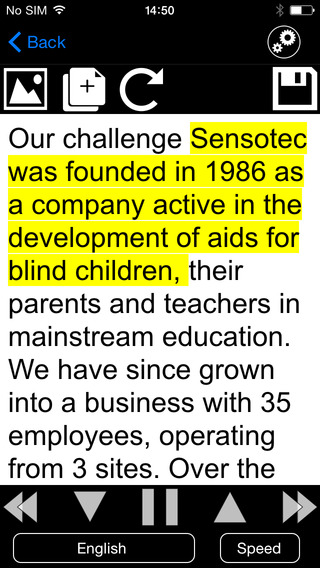
Text is can be highlighted word-by-word or line-by-line as it is being read aloud by the text-to-speech voice. Users can adjust the layout and appearance of the text and change the speaking rate of the text-to-speech voice. Only the default iOS text-to-speech voice is available, so users hoping to use another voice will have to export the text to another app. The built-in text reader also lacks the ability to highlight or annotate the document, so once again users looking for this functionality will need to export the text to a different app.
While the KNFB Reader app is faster and more accurate than competing products such as Prizmo, Prizmo does include some useful features that KNFB Reader does not. Prizmo, which is significantly less expensive, includes the ability to export PDF documents. This means a user can take a picture of a document, have the text recognized and any images on the page retained by Prizmo, so that it looks identical to the printed page. KNFB reader, by contrast strips away images, and only retains the printed text. If PDF export is an important feature to you, Prizmo may be a better option. Click here to learn more about Prizmo.
If you are looking for a text recognition app with great speed and accuracy, I think you will be quite pleased. If The KNFB reader fits your budget, you won't be disappointed. KNFB Reader costs $100, to download the app from the App Store click here. It is compatible with the iPhone 4S and newer and the iPod touch fifth generation. Click read more below to view screen shots of the app.